
Start with the ready-made trading template
Make your own copy of the trading template. Sign in to Google and save it to your Drive. The public template is view-only: use File → Make a copy if you open it in the viewer. Keep your working copy private, especially after connecting protected data.
The template includes macro comparisons, Treasury charts, release planning, position sizing, portfolio exposure, trade plans and a journal. Sample mode contains recent USD observations so you can inspect the layout before connecting your account. You do not need to paste data into each market-data tab.
Install the add-on and save your own API key
- Install FXMacroData. Use the Install the add-on button above and follow Google's installation and permission prompts. Return to your copied workbook and reload it if the menu is missing.
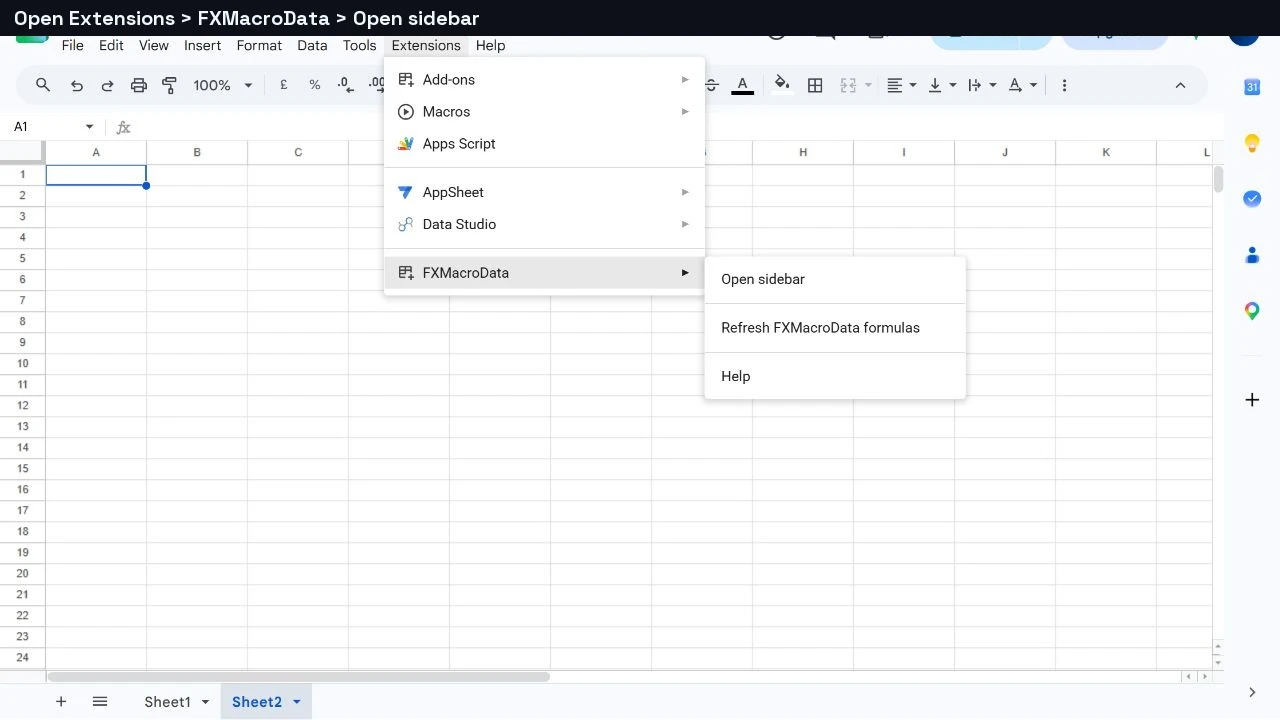
- Open the sidebar. Choose Extensions → FXMacroData → Open sidebar. Use the same Google account that owns your copy.
- Save your key in the add-on. Get your eligible API key from your FXMacroData account, paste it into the sidebar's API key field, click Save, then Test. Keep the key out of cells, formulas, comments and shared links.
The key is saved for your Google account through the add-on; it is not supplied by the public template. Free USD access does not unlock protected histories, other currencies or FX conversions. Those feeds require the appropriate subscription access.
Connect and refresh the workbook's data views
- Review Start here. Set Request date (UTC) in D6 to the date you want to research. Adjust the daily lookback or monthly-history setting if needed, then change Connection mode in D5 from Sample to Live in your private copy.
- Select Data feeds. This tab contains the requests used by the linked views. Keep the reserved output areas clear so returned tables have room to expand.
- Run the refresh command. With Data feeds active, choose Extensions → FXMacroData → Refresh FXMacroData formulas. Use this action after saving a key and whenever you want to request updated data. The current command refreshes the active sheet, so selecting Data feeds matters.
- Check the results. Review each feed's status, row count and latest date before using the workbook. Loaded indicates returned observations; Access needed means the feed needs eligible account access. An unavailable value must not be treated as zero.
Saving a key does not start automatic refresh. Google controls formula calculation; the add-on provides a deliberate refresh action rather than continuous streaming. If a copied formula initially shows #NAME?, open the add-on sidebar, select Data feeds and run the refresh command again.
| Workbook area | How it updates |
|---|---|
| Trading desk, Macro monitor, FX comparison, Rates and curve, Inflation and jobs | Read the returned feed values and recalculate their linked summaries and comparisons. |
| Week planner | Reads the calendar feeds; scheduled times are UTC and unknown times stay separate. |
| Position sizing and Portfolio exposure | Use your risk assumptions and positions alongside eligible account-currency FX feeds. |
| Event scenarios, Trade plans, research notes and Trade journal | You enter your ideas, assumptions and trade records; Weekly review summarizes the journal. |
| USD history | Retains the bundled sample. Live market-data views use Data feeds. |
The walkthrough below also shows how to build a smaller worksheet from individual imports and formulas, so you can adapt the template to your research.
A useful research spreadsheet should make the question easier to answer. For a weekly macro note, that might mean keeping a short inflation history beside the next scheduled release, with enough context to explain the measure. Copying numbers between browser tabs adds another job: remembering which series each number belongs to.
The FXMacroData Sheets add-on brings those inputs into the workbook. You can select data in the sidebar or enter an FXMACRO_ formula directly in a cell. The first route produces an editable snapshot; the second leaves the request visible in the formula bar.
Build a Treasury yield comparison workbook
Video transcript
Compare short and long term US Treasury yields in one Google Sheets workbook.
Open FXMacroData, choose USD and the ten year Treasury series, then set a recent date window.
Import the history with a line chart. Repeat for the two year series. These requests returned eighty six observations.
Match the dates and add both yield series to one chart. Now you can compare their movement across the same period.
Subtract the two year yield from the ten year yield, and multiply by one hundred for basis points. A second visual shows how that gap changes.
The result is a usable research workbook: recent history, a yield comparison, and a yield gap view, together in Google Sheets.
1. Open the add-on in your spreadsheet
Install FXMacroData for Google Sheets
Follow Google's installation and permission prompts, then open your spreadsheet. Choose Extensions → FXMacroData → Open sidebar. If you installed it while the spreadsheet was already open, reload the sheet before looking for the menu.
The sidebar has dataset controls, a live formula preview and separate actions for importing data and inserting a formula. Start with the free USD example before connecting subscription access.
Find the indicator slug and its units.
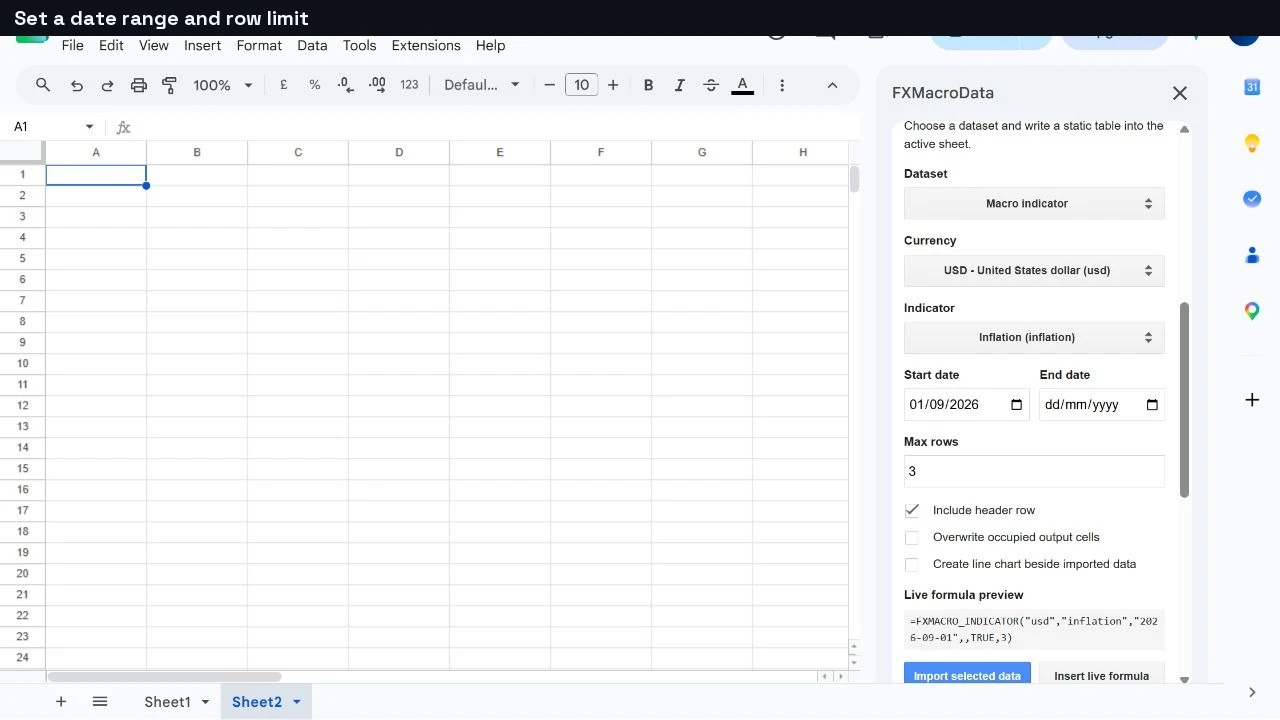
Choose a currency, date range and row limit.
Import a snapshot or insert a formula into clear cells.
Add the measure, units and research question beside the output.
2. Find the right indicator
In an empty area, enter:
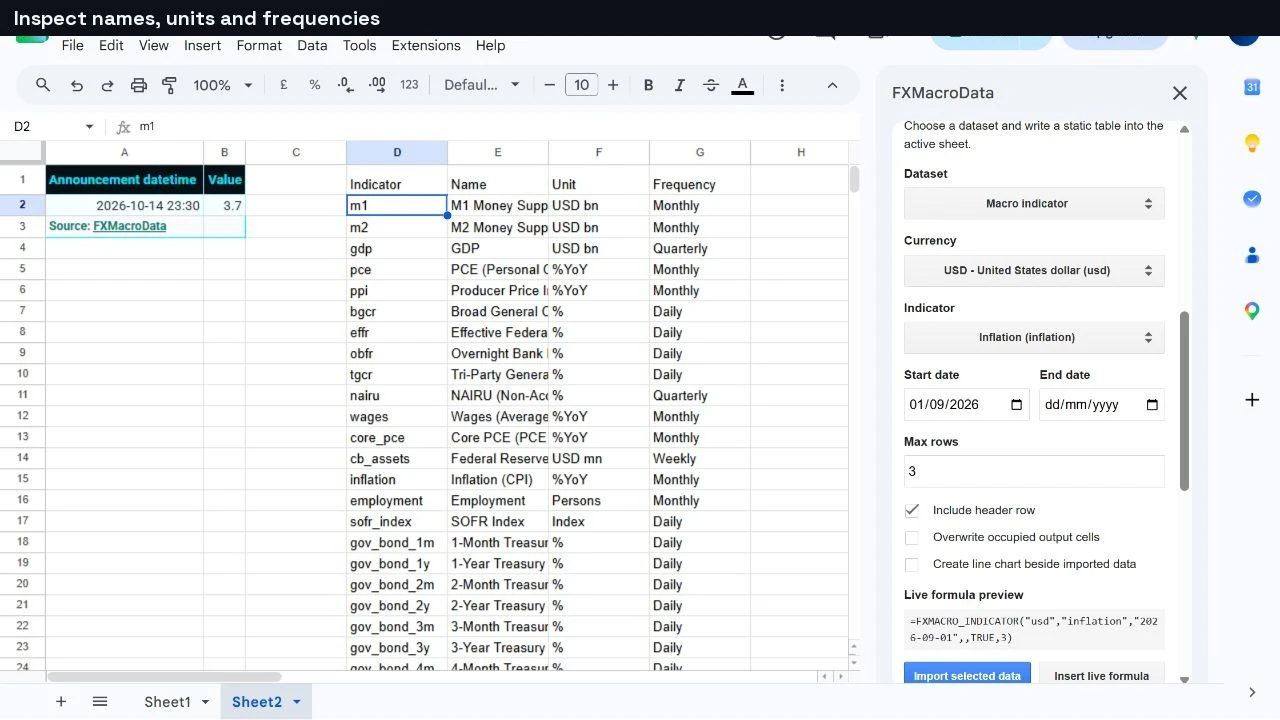
=FXMACRO_CATALOGUE("usd",TRUE)The result includes indicator identifiers, names, units and frequencies. This is how you find the exact slug for a formula and check whether two series are comparable. A monthly percentage change, a year-on-year percentage change and an index level answer different questions.
For this workbook, use the inflation slug for US consumer price inflation. Check the catalogue's unit before naming a chart axis or describing a move in your note. A change in a percentage rate is measured in percentage points; it is not automatically a percentage return.
3. Import a small static table
Select an empty cell. In the sidebar, choose Macro indicator, USD and Inflation. Set a recent start date, use a small maximum row count such as 3, keep the header row enabled, then click Import selected data.
The importer writes a table into the active sheet and reports its destination range. A row limit is a ceiling, so the result can contain fewer observations when your date window or account access provides fewer rows. Inspect the result before expanding the request.
| Method | What stays in the cells | Useful for |
|---|---|---|
| Sidebar import | A static table of values | An editable briefing snapshot or a table you will annotate |
| Custom function | A formula and its expanded result | A reusable worksheet whose request remains visible |
A static import is convenient when you want to add comments or preserve the table used in a meeting. Import again deliberately when you want a newer snapshot. Keep a copy of the workbook if you need a record of the briefing as it stood.
Turn the history into a visual comparison
For a daily-data example, select the USD gov_bond_10y and gov_bond_2y series. Import each into its own clear range with the same recent start date and a bounded row limit. Enable Create line chart for the first import, then add the second series after matching its dates to the first. Keep both yields on the same percentage scale.
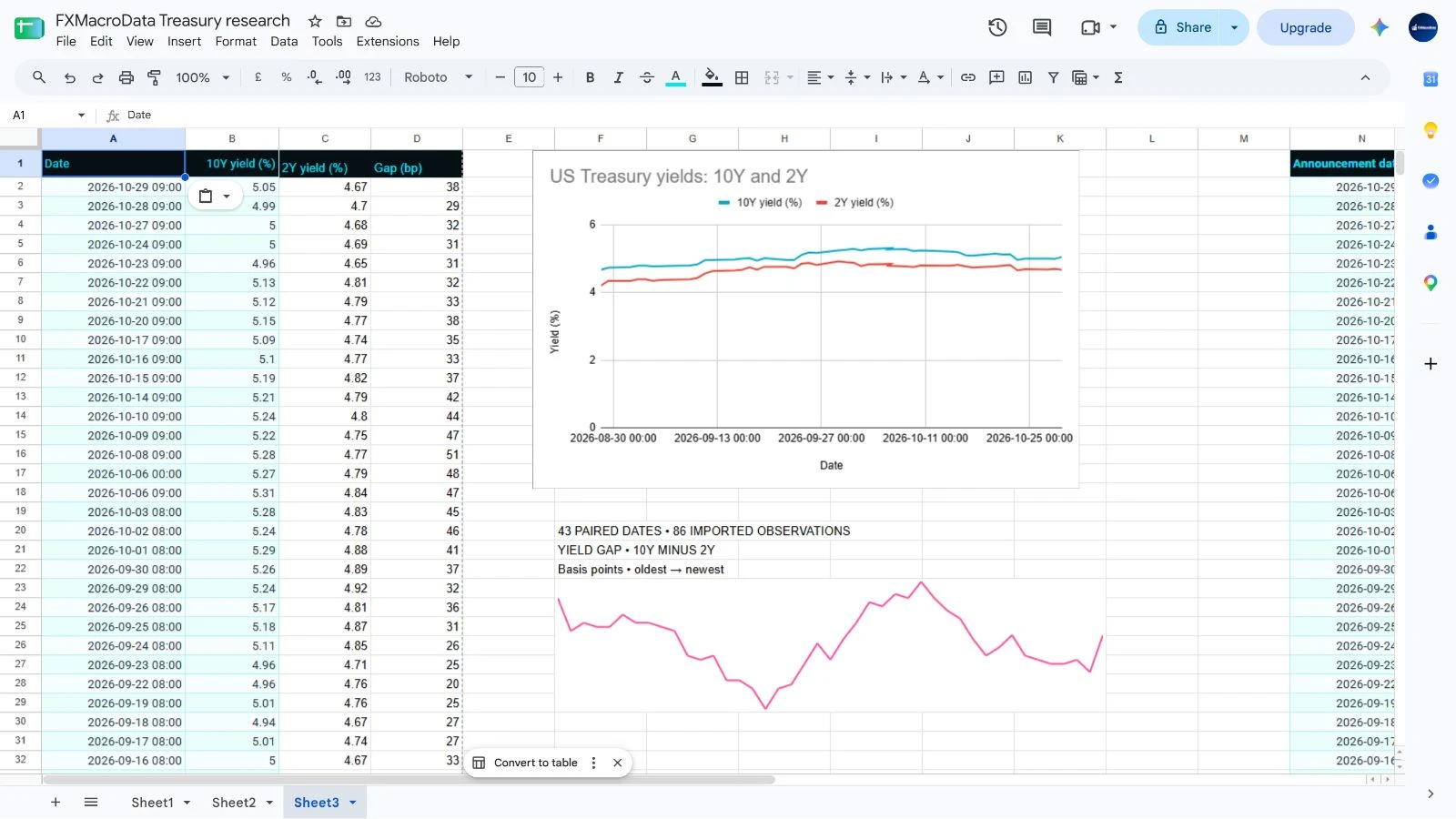
The gap in basis points is (10Y yield − 2Y yield) × 100 when the input yields are percentages. Match observations by date before subtracting them, and order the sparkline from oldest to newest. The chart compares yield levels; the gap view makes their changing distance easier to inspect.
4. Make the request reusable with a formula
For a formula-driven version, use another clear range. This example requests a bounded recent slice:
=FXMACRO_INDICATOR("usd","inflation","2026-09-01",,TRUE,3)The blank fourth argument leaves the end date open. TRUE includes headers, and the final argument limits the number of data rows. Replace the start date as your research window moves forward. You can also let the sidebar build the expression and use Insert live formula.
A live formula does not promise continuous streaming. Google Sheets controls spreadsheet calculation, and the data still follows your account's coverage and delay policy. The add-on's Refresh FXMacroData formulas command provides an explicit refresh action when you need to request an update.
5. Put the next release beside the history
Add a separate table for the release calendar:
=FXMACRO_CALENDAR("usd","inflation",TRUE)This gives the workbook a planning dimension: the history describes the series, while the calendar identifies its next scheduled update. Calendar times are shown in UTC. A scheduled time is a planning input, not evidence that the publisher has already released the figure.
Write the research question beside these tables. For example: “What would a higher or lower inflation reading change in our assessment?” Record which measure you are following, the unit, the date window and what you will compare after the release. That turns a data pull into a repeatable briefing process.
6. Add subscription datasets when the workbook needs them
The same add-on includes FXMACRO_FOREX and FXMACRO_COMMODITY. Use the sidebar's API-key controls to connect eligible access. Keep the key out of worksheet cells and formulas, especially in shared workbooks.
Without the required access, protected formulas can return an FXMacroData access needed table with guidance. Treat this as an access requirement, rather than a missing observation or a zero value. In collaborative sheets, review the formula and authentication guide before relying on protected formulas: they use the spreadsheet owner's saved key, while collaborators can use their own keys through sidebar imports.
A workbook you can explain
You now have a practical pattern: use the catalogue to identify a series, import a small table, keep a reusable formula where appropriate and place the next scheduled release in its own range. Add interpretation beside the output so another reader can understand what the workbook measures.
Install the Google Sheets add-on and copy the trading template to start with one research question. If you later need custom scheduling or application logic, the Apps Script guide covers that separate workflow.
Sources and further reading
- FXMacroData Marketplace listing: installation route, features and access summary.
- FXMacroData for Google Sheets documentation: formula reference and setup details.
AI was used for research and editing.